
Introduction
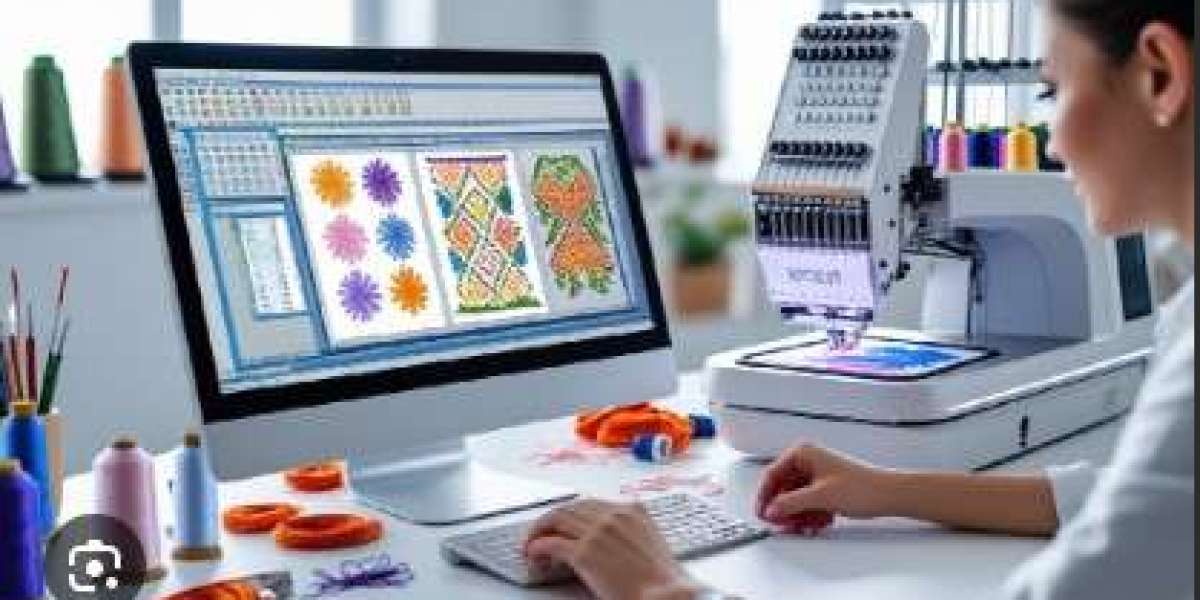
There's something undeniably professional about a beautifully embroidered logo. Whether it's adorning a company polo, a team jacket, or a personalized tote bag, that stitched emblem communicates quality and permanence. But getting from a digital logo to a flawless finished product isn't magic—it's a precise technical process. For owners of Baby Lock machines, the journey begins with one critical step: digitizing. The process to Convert Logo To Embroidery For Babylock is about translating your visual artwork into a language of stitches that your machine can execute with precision. When done correctly, you get clean edges, smooth fills, and results that look as sharp on fabric as they do on screen. This guide walks you through best practices to achieve exactly that, from understanding file formats to mastering the test stitch.
Understanding Your Baby Lock Machine's Language
Before you start any conversion, you need to know what format your Baby Lock actually speaks. Baby Lock machines primarily use the PES (Personal Embroidery System) format for embroidery files . This proprietary format, shared with Brother and some Bernina machines, stores both stitch placement data and thread color information . This is a significant advantage—when you load a PES file, your Baby Lock can display the correct thread colors on its screen, streamlining your setup process .
Other formats you might encounter include DST (the universal industry standard), EXP (Melco/Bernina), and PEC (an older Brother/Babylock format) . While your Baby Lock may read some of these, PES remains the native, optimal choice for clean results.
The key takeaway? Always aim to create or obtain PES files for your Baby Lock projects. When using conversion software, ensure PES is your output format .
Step 1: Start with the Right Source Artwork
Clean results begin before you ever open digitizing software. Your source image determines the ceiling of your quality.
Vector is king. If possible, start with vector artwork—AI, EPS, or SVG formats. Vectors are built on mathematical paths, not pixels, meaning they scale infinitely with razor-sharp edges . This gives your digitizing software a pristine blueprint to follow.
If you only have raster images (JPG, PNG): You can still succeed, but preparation is critical :
Ensure the image is high-resolution (at least 300 DPI at your target stitch size)
Increase contrast to make edges distinct
Simplify colors—reduce gradients to solid blocks
Remove backgrounds for cleaner tracing
Pro tip: Many professional digitizers recommend creating a simplified "embroidery version" of complex logos, adapting fine details for stitchability while preserving brand identity.
Step 2: Choose Your Digitizing Path
You have three options for converting your logo to a Baby Lock-ready file:
Option A: Professional Digitizing Services
For businesses or critical projects, this is the most reliable path. Experienced digitizers use professional software like Wilcom or Pulse, understand fabric behavior, and deliver production-ready PES files with guaranteed quality. Companies like Absolute Digitizing and Digitizing Buddy specialize in this work, offering fast turnaround and unlimited edits.
Option B: DIY Digitizing Software
If you prefer hands-on control, several software options support PES export:
Wilcom Hatch Embroidery: A premium, accessible solution balancing professional capabilities with learnability . Supports PES reading and writing .
Embrilliance Essentials: User-friendly, affordable, and explicitly supports saving designs as PES for Baby Lock/Brother owners .
Brother PE-Design: The official Brother/Baby Lock digitizing suite, offering native compatibility and advanced features.
Ink/Stitch (free): A powerful open-source extension for Inkscape. It can export PES, but requires more technical learning .
Option C: The "Don't" – Online Auto-Converters
Generic "JPG to PES" websites are tempting but risky. They strip metadata, mangle stitch density, and provide zero editability. Avoid them for anything you care about.
Step 3: The Digitizing Process for Smooth Results
Whether you're digitizing yourself or evaluating a service, these technical elements determine "clean and smooth":
Stitch Type Selection
Different logo elements demand different stitch treatments :
Satin stitches for text, borders, and narrow columns—they create smooth, raised edges
Fill stitches (tatami) for larger solid areas—they provide coverage and texture
Running stitches for fine details and underlay
Underlay: The Hidden Foundation
Underlay stitches are the invisible first layer that stabilizes fabric and prevents puckering . Skipping underlay is the fastest route to distorted designs. Proper underlay selection depends on your fabric—knits need different strategies than wovens.
Density and Pull Compensation
Density: Too dense = stiff, board-like patch and potential thread breaks. Too light = visible fabric gaps. Professional digitizers find the "sweet spot" for each fabric type.
Pull Compensation: Thread tension pulls fabric inward. Digitizers slightly oversize shapes so they contract into correct dimensions when stitched . This keeps circles round and letters crisp.
Stitch Direction and Sequencing
Stitch direction affects how light reflects and how the design interacts with fabric grain . Proper sequencing (the order of stitching) minimizes thread trims, reduces jump stitches, and ensures colors flow logically.
Step 4: Testing – The Non-Negotiable Step
This is where "clean and smooth" is proven or fails. Never assume a file is perfect based on screen previews. Software simulations cannot show fabric behavior, tension issues, or pull compensation accuracy.
Your testing protocol :
Use the EXACT fabric and stabilizer you'll use in production. Not "similar"—exact.
Stitch the file on a scrap hooped precisely as you would the final garment.
Examine critically:
Are edges clean and registration accurate?
Is there puckering or distortion?
Does the design match intended size and proportions?
Listen to your machine while it runs. A properly digitized file produces a rhythmic hum; harsh sounds indicate problems .
Iterate. Based on what you see, adjust parameters and test again. This loop separates "good" from "spot-on."
Advanced Tips for Specific Materials
Digitizing for Caps and Curved Surfaces
Caps require specialized techniques. Designs should stitch from the bottom center outward to prevent distortion around the cap's structure . Structured caps (with buckram) can handle slightly higher densities than unstructured "dad hats."
Digitizing for Delicate Fabrics
Silk, organza, and lightweight synthetics demand lighter touch: reduced density, finer needles, and water-soluble stabilizers. Test on scraps before committing.
Digitizing for Performance Wear
Stretchy athletic fabrics need digitizing that accounts for movement—elastic-friendly stitch angles and appropriate underlay.
Professional Tools for Baby Lock Users
Beyond digitizing software, these tools enhance results:
Magnetic Embroidery Hoops: Brands like MaggieFrame offer magnetic hoops that secure garments quickly and evenly, reducing fabric shifting and hoop marks . Users report reducing hooping time from ~3 minutes to ~30 seconds while maintaining consistent tension .
IQ Technology™: Advanced Baby Lock models feature IQ Technology that monitors and adjusts thread tension in real time based on fabric thickness . This ensures consistent stitch quality across varying materials.
Built-in Tutorials: Many Baby Lock machines include on-screen tutorials and stitch recommendations, helping you select appropriate settings for your project .
Common Mistakes to Avoid
Mistake 1: Over-digitizing
Adding too many stitches "just to be safe" creates stiff, board-like patches that are uncomfortable to wear and prone to puckering .
Mistake 2: Ignoring stabilizer choice
Stabilizer isn't optional—it's the foundation. Cut-away for knits, tear-away for stable wovens, water-soluble for high-pile fabrics .
Mistake 3: Rushing the test stitch
Skipping the test to save time almost always costs more time later in ruined garments and frustrated clients.
Mistake 4: Using the wrong needle
Felt needs sharp needles; knits need ballpoint. Match your needle to your fabric .
Conclusion
Achieving clean and smooth results when you Convert Logo To Embroidery For Babylock is a process that rewards attention to detail at every stage. It begins with understanding your machine's native PES format and selecting high-quality source artwork. It continues through thoughtful digitizing—choosing appropriate stitch types, engineering proper underlay, and balancing density and pull compensation. And it culminates in the essential reality check of a physical test stitch on your actual production fabric.
Whether you choose to master digitizing yourself or partner with professionals like Absolute Digitizing or Digitizing Buddy, the principles remain constant. A well-digitized file runs smoothly, prevents thread breaks, eliminates puckering, and represents your brand with the professional polish it deserves.
Your Baby Lock machine is a precision instrument capable of stunning work. Feed it files built on these best practices, and it will reward you with embroidery that looks as intentional, crisp, and impressive on fabric as your original design did on screen.